Table of Contents
- 🅰️ Installing Ansible
- 📋 Setting Up An Inventory
- 🗝️ Automating Key-Based Authentication
- 🗶 Using Variables
- 🔒 Using Ansible Vault to Store Passwords
- ❔ Using Conditions
- 🀚 Introduction to Idempotency
- 🎚️ Ansible Roles from Playbooks
- 🦾 Up Next
🅰️ Installing Ansible
This was written using WSL as the Ansible control node and being executed on an Ubuntu 22.04 VM inside of Proxmox.
Just like any good command-line session, this one starts with sudo apt update && sudo apt upgrade.
We need to install Ansible before we can use it, and Ansible requires Python/pip:
# Check if pip/python is installed
python3 -m pip -V

# If not, install it
curl https://bootstrap.pypa.io/get-pip.py -o get-pip.py
python3 get-pip.py --user
There's a similar pair of commands to install and upgrade Ansible onto the system:
# Install Ansible
python3 -m pip install --user ansible

# Upgrade the Ansible installation
python3 -m pip install --upgrade --user ansible
📋 Setting Up An Inventory
Ansible uses inventory files to track the servers that it should manage. First, we need to make a hosts file, ./ansible/inventory/hosts.
# Create an ansible directory
mkdir ./ansible

# Create an inventory directory
mkdir ./ansible/inventory

# Create a hosts file for the inventory
touch ./ansible/inventory/hosts
Hosts files use group names like [group-name] followed by a list of IP addresses or dns names for the servers to configure within that group. It's also possible to add variables necessary to use the server on the same line. Here we have ansible_user which is the remote user that will be used to execute tasks:
# Content of hosts file for demonstration
[sandbox]
192.168.1.229 ansible_user=justin
We can test the hosts file by using the sshpass package on the ansible control node, which in my case is my Windows desktop using WSL:
# Install the sshpass package
sudo apt install sshpass

# Test the hosts file on the sandbox group above
ansible -i ./ansible/inventory/hosts sandbox -m ping --user justin --ask-pass
The --user justin --ask-pass flags on this refer to this user and password for the ansible control node, as the playbook uses the ssh-copy-id command from the control node.
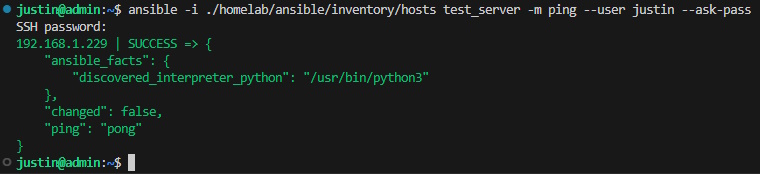 A successful ansible ping pong response
🗝️ Automating Key-Based Authentication
Ansible is at its best when it's used to automate tasks, so let's create an SSH key and an Ansible playbook to copy it over:
# Create SSH key for Ansible
ssh-keygen -t ed25519 -C "ansible"

# Create a directory to save the SSH keys
/home/wsl/.ssh/ansible

# Enter Password (or blank)
# Blank allows Ansible to use this key with password prompt at start for vault only
Now we need to create a playbook to copy the ansible key to the taget host, wait for ssh to become available, then ping the host to ensure that key-based authentication has been set up.
# Create a playbook directory
mkdir ./ansible/playbooks
After the playbook directory has been created, create a file called ssh-key-setup.yml with the following content:
---
- name: Copy SSH key and verify connectivity
  hosts: "*"
  tasks:
    - name: Copy Ansible SSH key to target hosts
      command: ssh-copy-id -i ~/.ssh/ansible.pub {{ ansible_user }}@{{ inventory_hostname }}
      delegate_to: localhost
      ignore_errors: yes

    - name: Wait for SSH to be available
      wait_for:
        host: "{{ inventory_hostname }}"
        port: 22
        timeout: 60
        state: started

    - name: Ping sandbox group hosts
      ansible.builtin.command:
        cmd: ansible {{ inventory_hostname }} -m ping --key-file ~/.ssh/ansible
      delegate_to: localhost
      ignore_errors: yes
Now all that's left is running the following command:
ansible-playbook -i ./ansible/inventory/hosts ./ansible/playbooks/ssh-key-setup.yml --user justin --ask-pass
This will copy over the public SSH key to the server, and subsequent SSH requests can use the flag --private-key ~/.ssh/ansible. For example, the following command will run the same playbook using the SSH key instead:
ansible-playbook -i ./ansible/inventory/hosts ./ansible/playbooks/ssh-key-setup.yml --private-key ~/.ssh/ansible
This command tells Ansible to use the specific inventory to run the playbook found in ssh-key-setup.yml using the ansible private key.
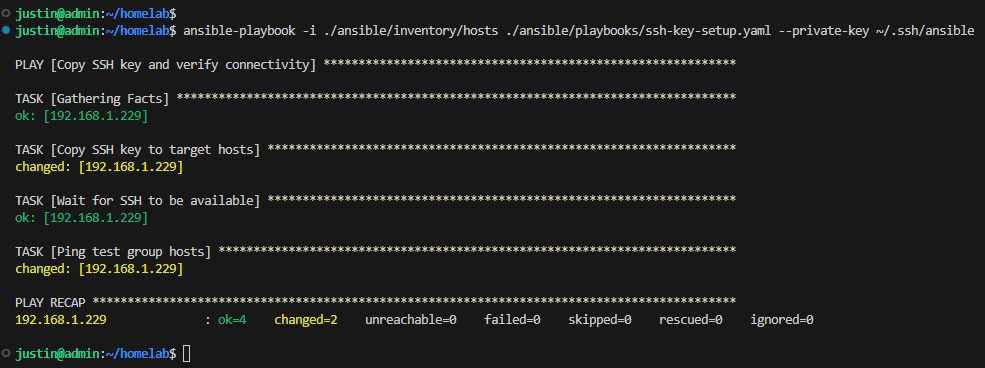 Running a playbook to copy over a public key
The "Copy SSH key to target hosts" task indicates that the key was copied over to the target with the changed tag.
Similarly, the "Ping sandbox group hosts" task is also indicated with the changed tag because the ping was successfully ponged.
It's worth noting that the authentication key can be copied over manually with the following command:
# Copy the public key to a target server
ssh-copy-id -i ~/.ssh/ansible.pub 192.168.1.229
The ping module can also be called ad-hoc using the following once the key is present on the server:
# Use Ansible ping module to check condition
ansible all -m ping --key-file ~/.ssh/ansible
Disabling Non-Key Access
Now that we can administer remote servers via SSH keys, it's a good idea to disable simple username/password authentication and require the use of one of these keys for access. This is a security feature to help protect against SSH brute-force attacks, so while it's not necessary for internal servers I think it's good practice.
On my server, as of Ubuntu 22.04, there are multiple config files that control password authenication. One is found at /etc/ssh/sshd_config and another at /etc/ssh/sshd_config.d/50-cloud-init.conf.
For the file at /etc/ssh/sshd_config, we can create a task that checks if the file exists and another that uses a regex replacement to turn off password authentication:
- name: Ensure sshd_config exists
  stat:
    path: /etc/ssh/sshd_config
  register: sshd_config

- name: Disable password authentication in sshd_config
  lineinfile:
    path: /etc/ssh/sshd_config
    regexp: '^#?PasswordAuthentication'
    line: 'PasswordAuthentication no'
    state: present
  when: sshd_config.stat.exists
While researching how to disable password authentication with Ansible, I found that there can be multiple files within the etc/ssh/sshd_config.d/ directory, so we'll have a third task that uses pattern matching to identify all files within the directory and a fourth that loops over found files and performs the above regex replacement if necessary:
- name: Find SSH configuration files
  find:
    paths: /etc/ssh/sshd_config.d
    patterns: '*.conf'
  register: sshd_config_files

- name: Disable password authentication in sshd_config.d files
  lineinfile:
    path: "{{ item.path }}"
    regexp: '^#?PasswordAuthentication'
    line: 'PasswordAuthentication no'
    state: present
  loop: "{{ sshd_config_files.files }}"
  when: sshd_config_files.matched > 0
A fifth and final task is required to restart the SSH service to ensure that our changes have taken effect:
- name: Restart SSH service
  service:
    name: sshd
    state: restarted
  when: sshd_config.stat.exists
The complete playbook can be found in the repo and can be run with the following command:
ansible-playbook -i ./ansible/inventory/hosts ./ansible/playbooks/disable-password-login.yml --private-key ~/.ssh/ansible --ask-vault-pass
With the playbook executed, SSH keys are required to access the remote server!
Adding another SSH key for non-Ansible related tasks
This Ansible documentation has been written from the perspective of a dedicated Linux Ansible control node, however sometimes I might want to access these remote servers via SSH without using Ansible.
Let's use WSL to create a second SSH key to be used remote connections from my Windows desktop:
# Log into WSL and create SSH key for admin tasks
ssh-keygen -t ed25519 -C "admin"

# Create a directory to save the SSH keys
/home/wsl/.ssh/admin

# Enter Password (or blank)
# Blank allows Ansible to use this key with password prompt at start for vault only
With the key created, we need to make sure that it's been added to the agent and can be used:
# Check the list of ssh keys
ssh-add -l

# Ensure the agent is running
eval $(ssh-agent)

# Add the admin key if not present in the list
ssh-add ~/.ssh/admin
With the SSH key created and active, we need to create a task to copy it to remote servers, and modify our Windows' ssh config file to use the private key when connecting to the remote server. In ssh-key-setup.yml, I added the following task:
- name: Copy admin SSH key to target hosts
  command: ssh-copy-id -i ~/.ssh/admin.pub {{ ansible_user }}@{{ inventory_hostname }}
  delegate_to: localhost
  ignore_errors: yes
  when: "'admin' not in authorized_keys_decoded"
In the case where you want to use Ansible to distribute a key from a machine that isn't the control node, the -f flag will be required.
I had this situation come up when I wanted to use a key from my Windows machine so that I could use VSCode's remote connection to the server for development, but it would also be useful for enabling SSH access to trusted devices.
To add a key like this for VSCode, I modifed the ssh config file in ./ssh by adding a block for each remote server:
# Template
Host [alias]
  HostName [address]
  User [user]
  IdentityFile [seckey key location]

# Example
Host Sandbox
  HostName 192.168.1.229
  User justin
  IdentityFile C:\Users\Justin\.ssh\admin
🗶 Using Variables
#️⃣ In the hosts file
It's possible to streamline the use of variables by including them in the hosts file. For example, adding the Ansible Host's username can be done by adding the following to the top of the hosts file if all servers will use the same ansible_user:
[all:vars]
ansible_user=justin
When each of the servers in the inventory will have a different ansible_user, it's possible to declare the variable per-server (as we've already seen):
[sandbox]
192.168.1.229 ansible_user=justin
🔒 Using Ansible Vault to Store Passwords
Some actions, like updating apt require a sudo password. It's not fun to type one out for each server in the inventory file, nor is it a good idea to store them in plain text. We can create a variable to store the password and encrypt that file for ansible to use:
mkdir ~/.ansible/vault
touch ~/.ansible/vault/ansible_become_pass.yml

# Create the file to store the sudo password
echo 'ansible_become_password: secure_password' > ~/.ansible/vault/ansible_become_pass.yml

# Encrypt the file with ansible-vault
ansible-vault encrypt ~/.ansible/vault/ansible_become_pass.yml
You will be prompted to enter a password for the vaulted variable. You can check that the password has been successfully encrypted as well:
cat ~/.ansible/vault/ansible_become_pass.yml
Let's create a file called apt-update-upgrade.yml to complete the example started at the top of this section:
---
- name: Update and upgrade apt repository
  hosts: "*"
  become: yes
  vars_files:
    - ~/.ansible/vault/ansible_become_pass.yml
  tasks:
    - name: Run apt update && upgrade
      apt:
        update_cache: yes
        upgrade: 'yes'
Finally we can run the playbook to update our sandbox server with the following command:
ansible-playbook -i ./ansible/inventory/hosts ./ansible/playbooks/apt-update-upgrade.yml --private-key ~/.ssh/ansible --ask-vault-pass
Encrypting a Standardized SSH Password
In cases where a standardized password is used for the initial user, we can use Ansible Vault to store an encrypted version:
touch ~/.ansible/vault/ansible_ssh_pass.yml

# Create the file to store the sudo password
echo 'ansible_ssh_password: secure_password' > ~/.ansible/vault/ansible_ssh_pass.yml

# Encrypt the file with ansible-vault
ansible-vault encrypt ~/.ansible/vault/ansible_ssh_pass.yml
This newly created variable can be called in the playbooks using the same method as ansible_become_pass:
  vars_files:
  - ~/.ansible/vault/ansible_ssh_pass.yml
  - ~/.ansible/vault/ansible_become_pass.yml
❔ Using Conditions
🙇 On File Existence
Sometimes when we run the apt update && upgrade commands, we need to restart the kernel. Luckily, Ansible allows us to create conditions and we can leverage this to tell our playbook to restart the target machine if a reboot is necessary by adding the following as tasks two and three to the apt-update-upgrade.yml file:
- name: Check if reboot is required
  register: reboot_required_file
  stat: path=/var/run/reboot-required

- name: Reboot if necessary
  reboot:
    msg: "Reboot initiated by Ansible for kernel updates"
    connect_timeout: 5
    reboot_timeout: 300
    pre_reboot_delay: 30
    post_reboot_delay: 30
    test_command: uptime
  when: reboot_required_file.stat.exists
Task two, "Check if reboot is required," creates variable, reboot_required_file, which contains information about the file found at the remote target path /var/run/reboot-required. Task three, using the clause when: reboot_required_file.stat.exists simply checks if a file exists at the specified path.
The completed apt-update-upgrade.yml file now runs the update and upgrade commands, checks if a restart is required, and follows through with an update if necessary.
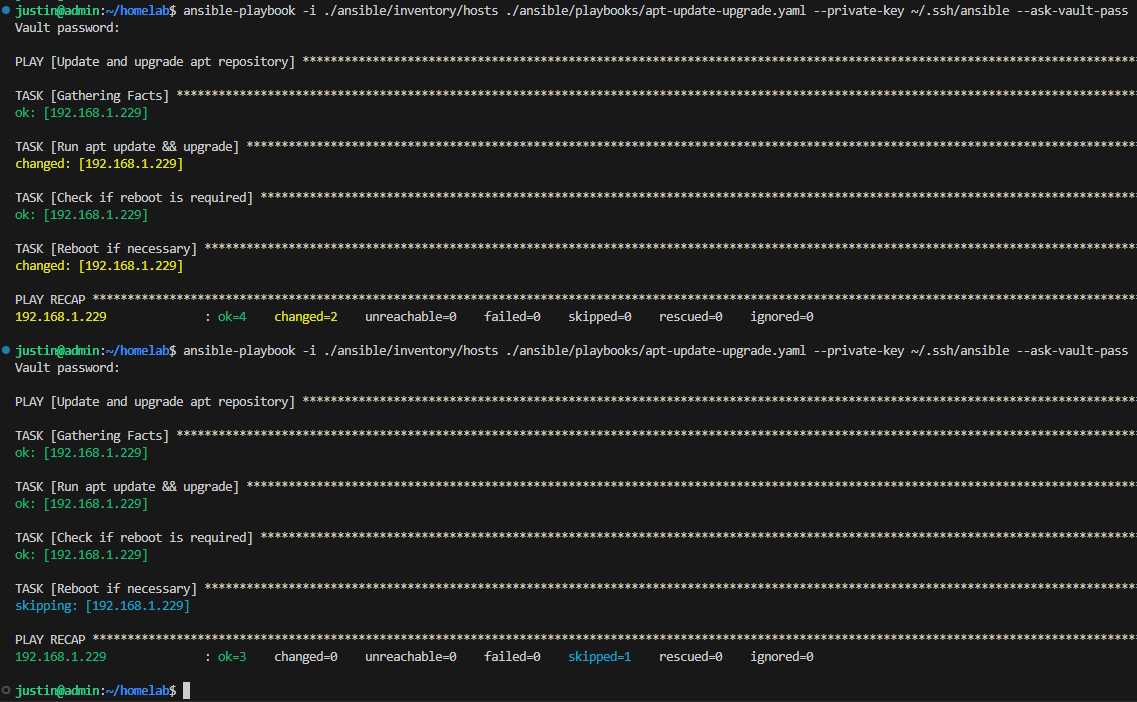 Conditions in action
💼 On File Contents
We can also create conditions to check the contents of files. We can leverage this in our situation by modify ssh-key-setup.yml to check if our Ansible SSH key present on the target before copying it over.
To do so, first we need to add the following two tasks as the first and second tasks in ssh-key-setup.yml:
- name: Read the contents of the authorized_keys file
  slurp:
    path: ~/.ssh/authorized_keys
  register: authorized_keys_contents

- name: Decode the authorized_keys contents
  set_fact:
    authorized_keys_decoded: "{{ authorized_keys_contents.content | b64decode }}"
Here, the first tasks takes the contents of the target's authorized_keys file and the second decodes the base64-encoded content of this file.
Now we can use the authorized_keys_decoded variable to create when conditions in our playbook. By adding the when: "'ansible' not in authorized_keys_decoded" clause to the end of each of the three original tasks in ssh-key-setup.yml (now tasks 3-5). Running this playbook now will first check the contents of the target's authorized_keys file and then only copy the ansible public key from the control node to the target only if it is not already present.
Picture of the completed file?
🀚 Introduction to Idempotency
Up to now, we have been using Ansible to make actions (or not) depending on the existence/contents of a file. Through Ansible, we can leverage idempotency, which I like to think of as declarative state. With idempotency, we can not only have Ansible follow through with conditional actions, but we can tell Ansible what we want the desired state of our server to be. In other words, we can tell Ansible that we want a certain package to be present and Ansible will only act if necessary.
On my Proxmox virtual machines, I like to make sure the the QEMU Guest Agent package is installed, so I have a playbook called qemu-guest-agent.yml to manage exactly that:
---
- name: Install latest qemu-guest-agent
  hosts: "*"
  become: true
  vars_files:
    - ~/.ansible/vault/ansible_become_pass.yml
  tasks:
    - name: install qemu-guest-agent
      apt:
        name: qemu-guest-agent
        state: present
        update_cache: true
The most important line here is state: present. This instructs Ansible to make sure that the latest qemu-guest-agent package is installed. When we run this playbook for the first time, it will install the package and result in a 'changed' status and subsequent runs will result in the 'ok' status since the state is present as declared.
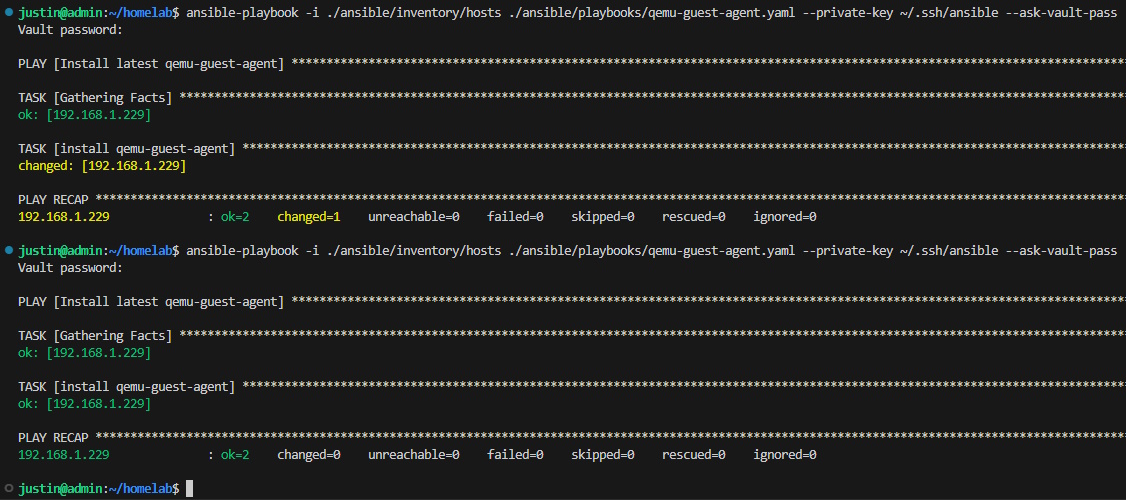 Idempotency in action
🎚️ Ansible Roles from Playbooks
Roles can be used to take groups of tasks and objectify them, making them modular and reusable. What we've been writing in our playbooks are better used as roles, which can then be called be playbooks alone or alongside other roles.
Roles are broken up into smaller pieces through the following directory structure:
# Create all the directories for roles
mkdir -p ansible/roles/role_name/{tasks,handlers,templates,files,vars,defaults,meta}

  roles/
  └── role_name/
      ├── tasks/
      │   └── main.yml
      ├── handlers/
      │   └── main.yml
      ├── templates/
      ├── files/
      ├── vars/
      │   └── main.yml
      ├── defaults/
      │   └── main.yml
      └── meta/
          └── main.yml
ssh_key_copy Role
Let's start in the same place as above by creating a role based off of ssh-key-setup.yml. First, we need to make the directories for our role:
# Create all the directories for roles
mkdir -p ansible/roles/ssh_key_copy/{tasks,handlers,templates,files,vars,defaults,meta}
From the playbook, we need to move the tasks over to ansible/roles/ssh_key_copy/tasks/main.yml:
---
- name: Read the contents of the authorized_keys file
  slurp:
    path: ~/.ssh/authorized_keys
  register: authorized_keys_contents

...

- name: Ping test group hosts using copied SSH key
  ansible.builtin.command:
    cmd: ansible {{ inventory_hostname }} -m ping --key-file ~/.ssh/ansible
  delegate_to: localhost
  ignore_errors: yes
  when: "'ansible' not in authorized_keys_decoded"
With the tasks in place, we need to tell the role which variables it should use inside ansible/roles/ssh_key_copy/vars/main.yml. Here we will tell it the name of the ansible_user, the location of the private SSH key to use, and to turn off a warning about the location of the python interpreter:
# Add to `ansible/roles/ssh_key_copy/vars/main.yml`
ansible_user: justin
ansible_ssh_private_key_file: ~/.ssh/ansible
ansible_python_interpreter: auto_silent # turns off python location warning
With our roles will each be told which variable to use, we can remove ansible_user=justin from the hosts file.
The only thing left now is to create a new playbook with a descriptive name to call this role. I called mine server-setup-proxmox-ubuntu2204.yml:
---
- name: Init server from fresh Ubuntu install
  hosts: "*"
  vars_files:
  - ~/.ansible/vault/ansible_ssh_pass.yml
  roles:
    - ssh_key_copy
Running the following command will now run the new server-setup-proxmox-ubuntu2204.yml playbook containing the newly created role:
ansible-playbook -i ./ansible/inventory/hosts ./ansible/server-setup.yml --ask-vault-pass
Moving the Remaining Playbooks into Roles, introducing Handlers
Moving on to the second playbook, first we need to make the appropriate directories for the disable_password_login role:
# Create all the directories for roles
mkdir -p ansible/roles/disable_password_login/{tasks,handlers,templates,files,vars,defaults,meta}
The file at ansible/roles/disable_password_login/vars/main.yml should have the same three values as the one we created at ansible/roles/ssh_key_copy/tasks/main.yml.
Handlers are things that we might want to trigger in a role and have complete only once at the end the tasks, like restarting a service. There's a handler in disable-password-login.yml that we can pull out and add to the appropriate file at ansible/roles/disable_password_login/handlers/main.yml:
---
- name: Restart SSH service
  service:
    name: sshd
    state: restarted
With the handler taken care of, the remaining four tasks from the disable-password-login.yml playbook should be added to ansible/roles/disable_password_login/tasks/main.yml. To make sure these tasks can call the handler, we need to add notify: Restart SSH service to tell the playbook to invoke the handler. If the handler is triggered at any time during the role, it will invoke the action.
This role requires become: yes, so we need to include it in our playbook and also alter it to call multiple roles with different parameters:
---
- name: Init server from fresh Ubuntu install
  hosts: "*"
  vars_files:
  - ~/.ansible/vault/ansible_ssh_pass.yml
  - ~/.ansible/vault/ansible_become_pass.yml
  roles:
    - role: ssh_key_copy
    - role: disable_password_login
      become: yes
Now when we run the following command, Ansible will run the playbook containing both the ssh_key_copy and disable_password_login roles:
ansible-playbook -i ./ansible/inventory/hosts ./ansible/server-setup-proxmox-ubuntu2204.yml --ask-vault-pass
Finishing up the remaining two playbooks is done by following a similar pattern of breaking off the tasks into the appropriate file, populating the vars/main.yml file, paying no mind to the other directories, and adding the role to server-setup-proxmox-ubuntu2204.yml.
With that complete, we should be able to run the playbook on a freshly installed Ubuntu 22.04 server and have it initiate to our desired state:
ansible-playbook -i ./ansible/inventory/hosts ./ansible/server-setup-proxmox-ubuntu2204.yml --ask-vault-pass
🦾 Up Next
Now that I'm able to put a server into an initiated state, things can start to branch out from here. I should learn how to make a template so that I can skip both the manual installation phase and save some compute doing apt update && apt upgrade.
Past that, I think learning how to initate an Ansible user (and other users?) during init would add safety and a valuable learning opportunity.
I would also like to explore using Ansible to automate my Proxmox VM backups. This would tie nicely into an upgrade testing workflow; being able to backup, update, test, then rollback or continue in an automation would make managing a scaling number of servers much easier.
More speficially about Ansible itself, I would like to learn more about variables and defaults as they seem like the next level of abstraction available to me through Ansible.

